
Uploading and Managing Documents
eVault accepts PDF files individually or in bulk. This page covers how to upload documents, add supporting files, leave notes, and keep package information up to date.
Upload Documents
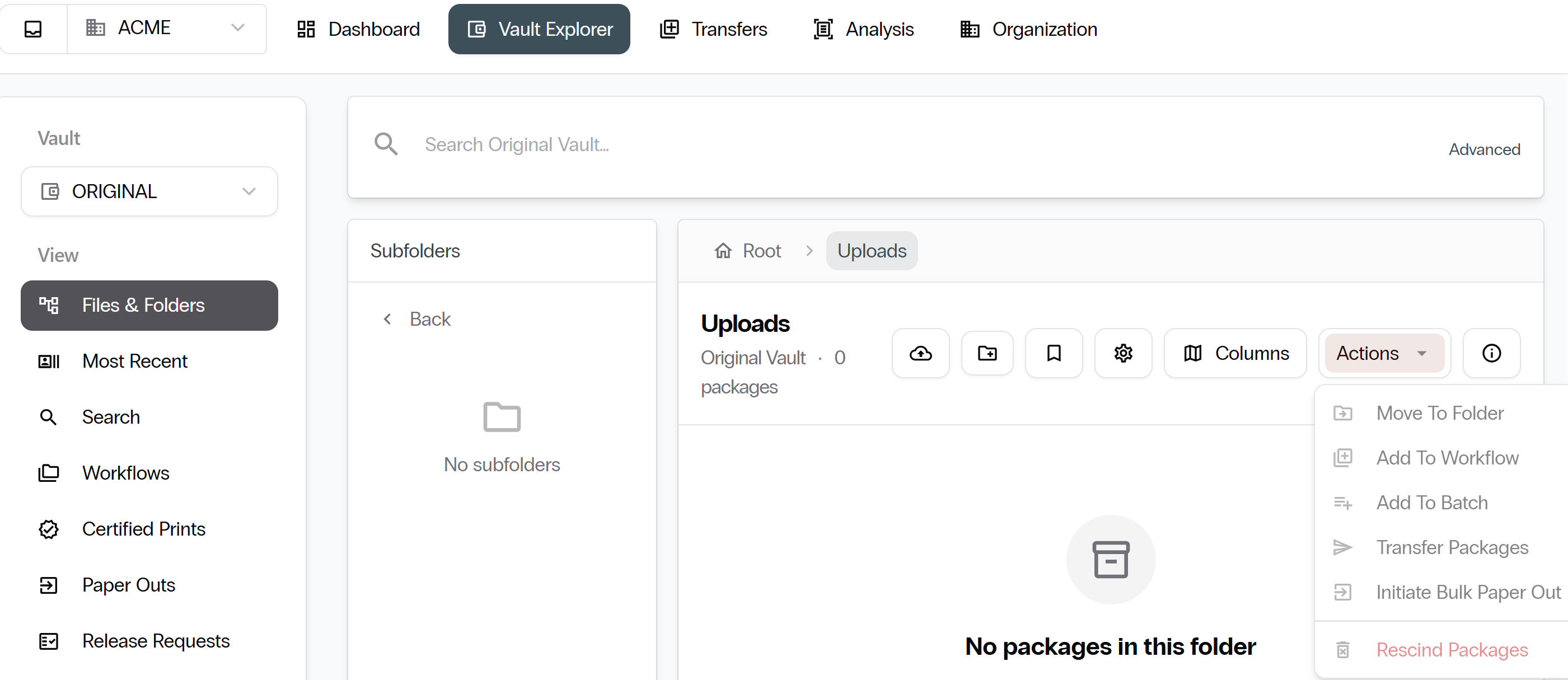
Upload a Single PDF
- Navigate to the folder where you want the document to go.
- Select Upload.
- Select a PDF file from your computer.
- Fill in any required fields, such as loan number or borrower name.
- Select Save.
Upload Multiple PDFs at Once
You can select several PDF files in one upload. Each file becomes its own package, and each package is named after the filename.
Add Attachments to a Package
Attachments are supporting files added to a package. Unlike main documents, attachments can be deleted later.
- Open the package.
- Select the Files tab, then select Add attachment.
- Choose your file and confirm the upload.
Add Notes to a Package
Notes let you leave comments, flag issues, or communicate with your team.
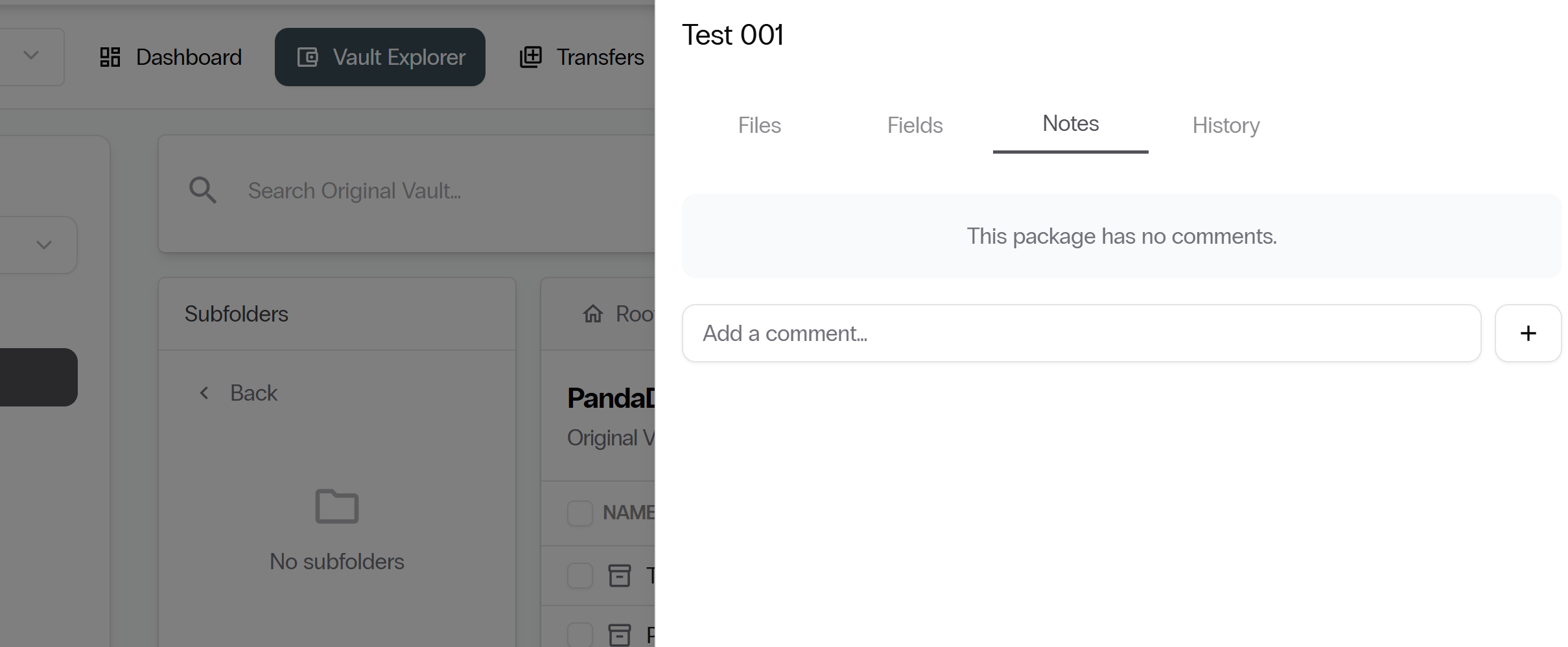
- Open the package.
- Select the Notes tab.
- Type your note and select Save.
Update Package Information
- Open the package.
- Select the Fields tab, edit the values as needed, and save your changes.
- To move the package, select Move from the package actions menu.
Next: Prints, Paper-outs, and Transfers. Continue with Prints, Paper-outs, and Transfers.