
Finding Documents
eVault organizes your documents into packages, and it stores those packages inside folders within vaults. This page covers every way to find and open your documents.
Browse files and folders
The Vault Explorer shows your vault as a folder tree. It looks similar to File Explorer or Finder on your computer.
- Select Vault Explorer from the top navigation.
- Select any folder on the left to see the packages inside.
- Select a package to open its detail panel.
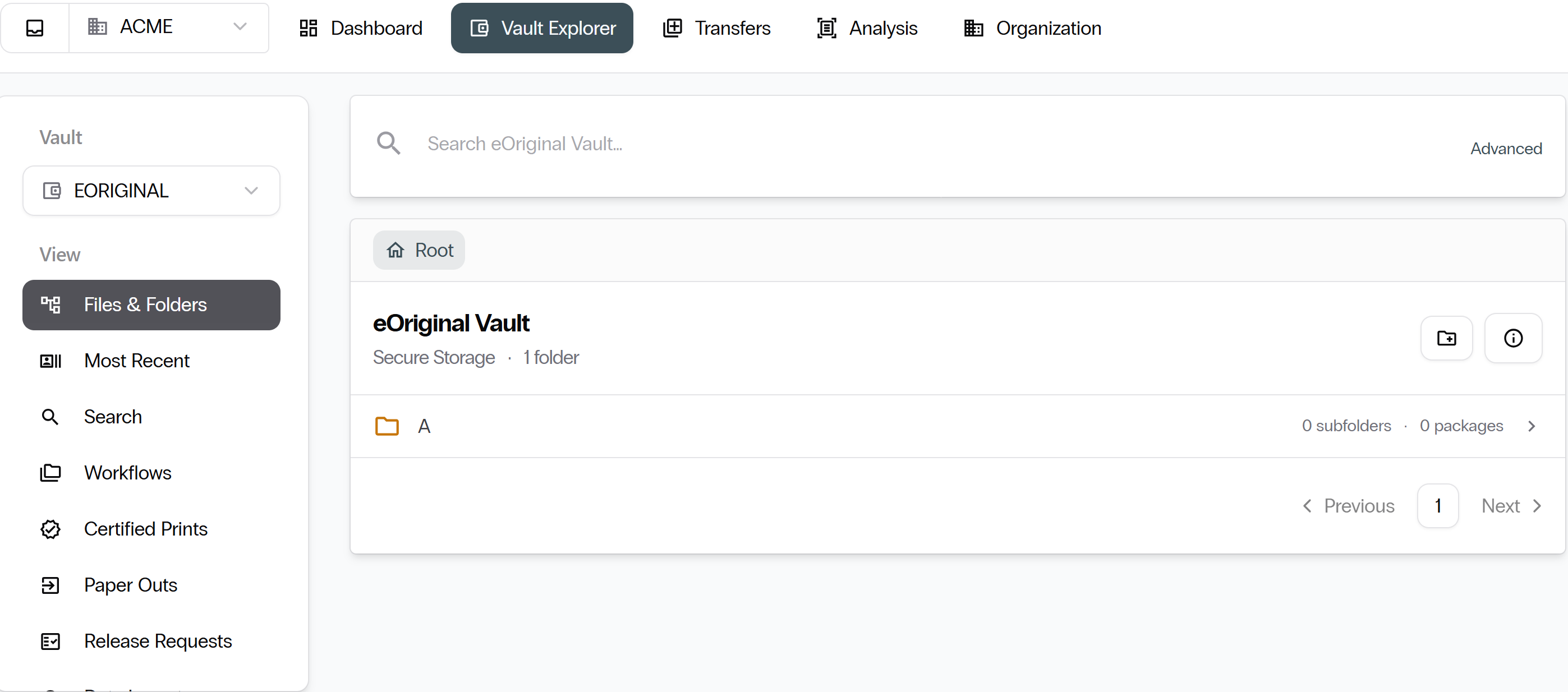
View recent uploads
Select Most Recent from the left sidebar to see the latest packages added to your vault.
Search for a package
Select Search from the left sidebar to filter across your entire vault.
- Package name
- Package source
- Package type
- Import date range
- Account ID or full name
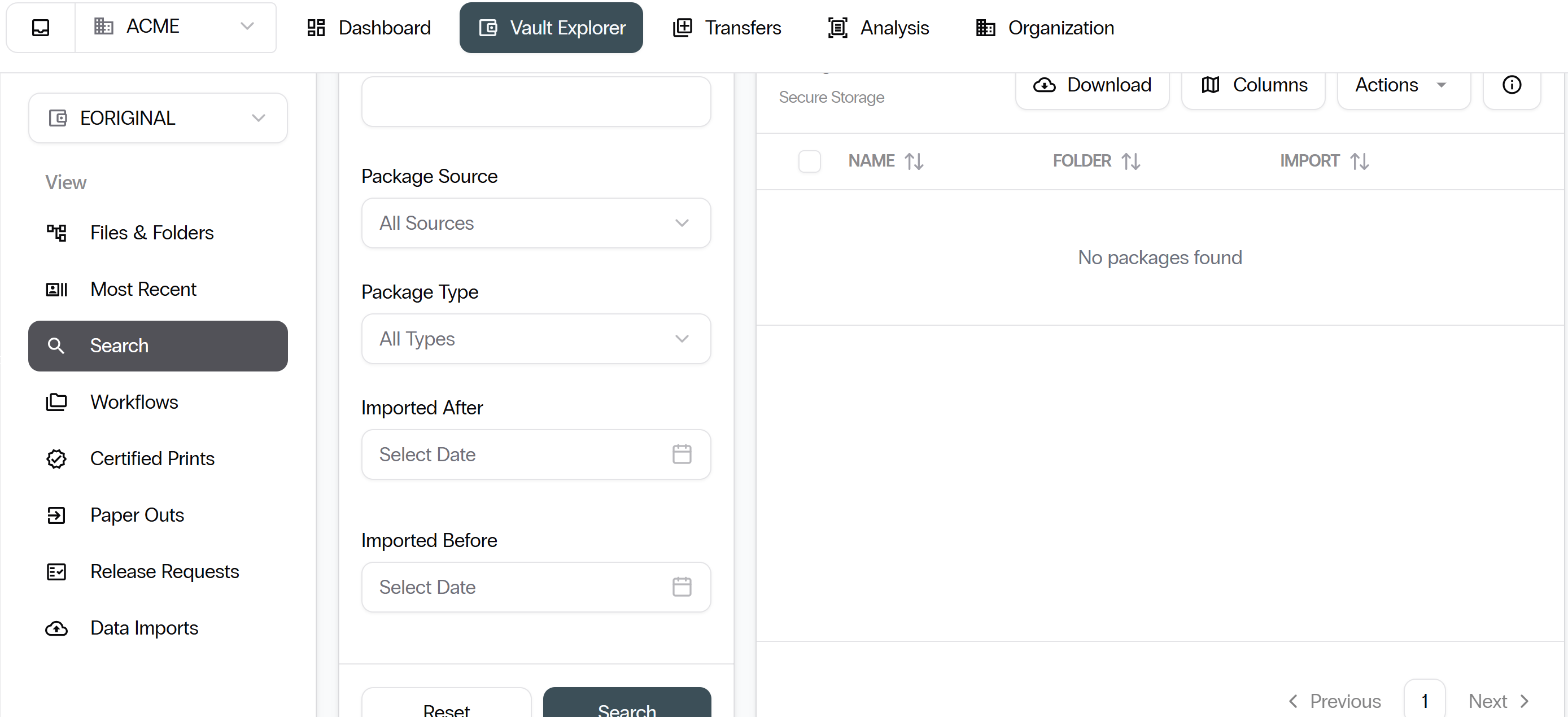
Search looks across your entire vault regardless of which folder you are currently in.
Use bookmarks
You can flag any package as a bookmark for quick personal access. Bookmarks are private to you.
Review data imports
Bulk imports appear as dated folders in the Vault Explorer.
- Select Data Imports from the left sidebar to see a log of all import jobs and their statuses.
- Alternatively, open an import folder directly in Vault Explorer to browse the packages it created.
Next: Uploading and managing documents
Continue with Uploading and Managing Documents.