
eVault Layout
eVault's interface is organized into four main sections, reachable from the tabs across the top of every screen. This page is a short tour of each one. Follow the link on any section to open its full walkthrough.
Dashboard
Your landing page after sign-in. The Dashboard shows what needs your attention, a real-time summary of your vault, and quick links back to your workflows, bookmarks, recent packages, and recent activity.
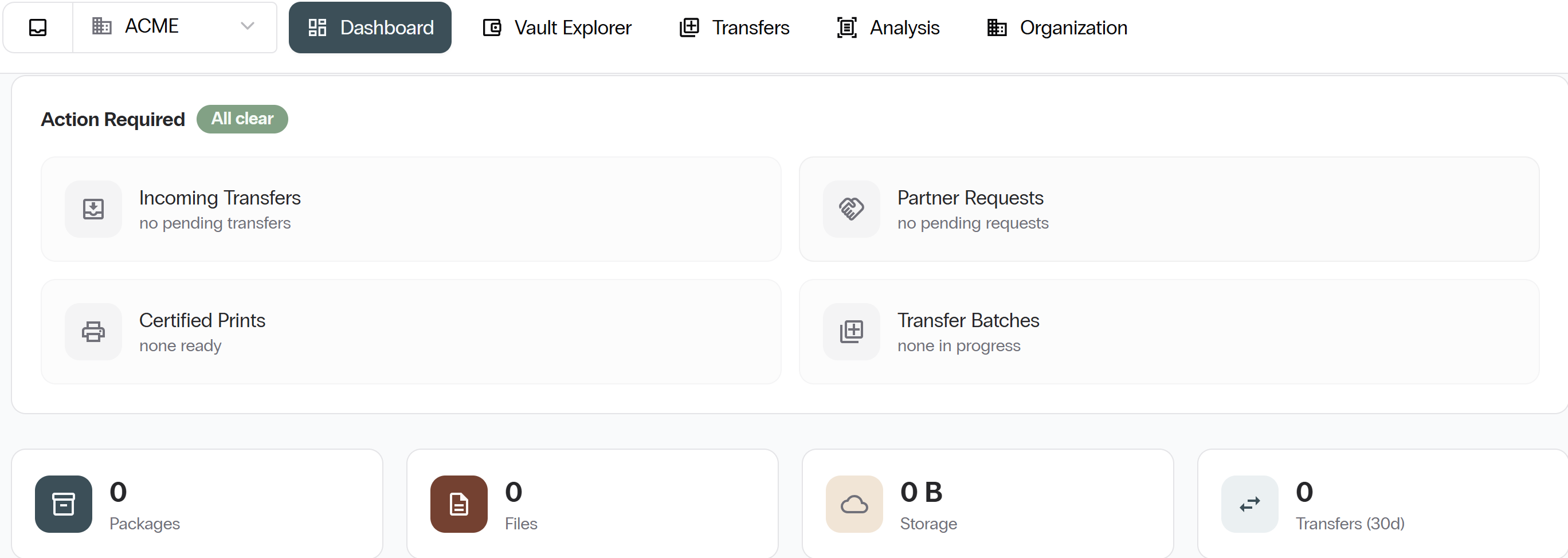
See Dashboard for the full walkthrough.
Vault Explorer
Where your documents live. Browse the folder tree, run searches, use workflows and bookmarks, and open a package's detail tabs.
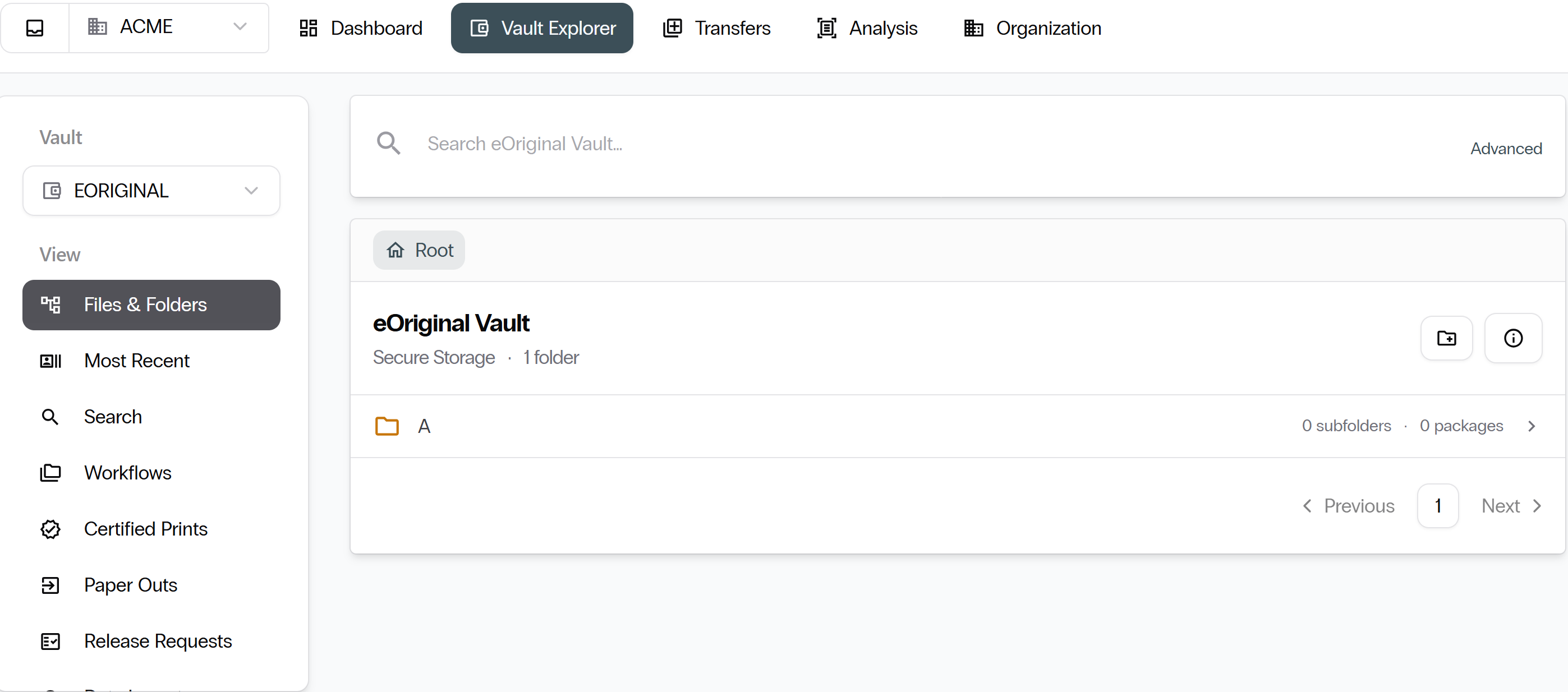
See Vault Explorer for the full walkthrough.
Transfers
The workspace for moving packages between vaults. Create outgoing transfer batches, accept or reject incoming batches, and review history.
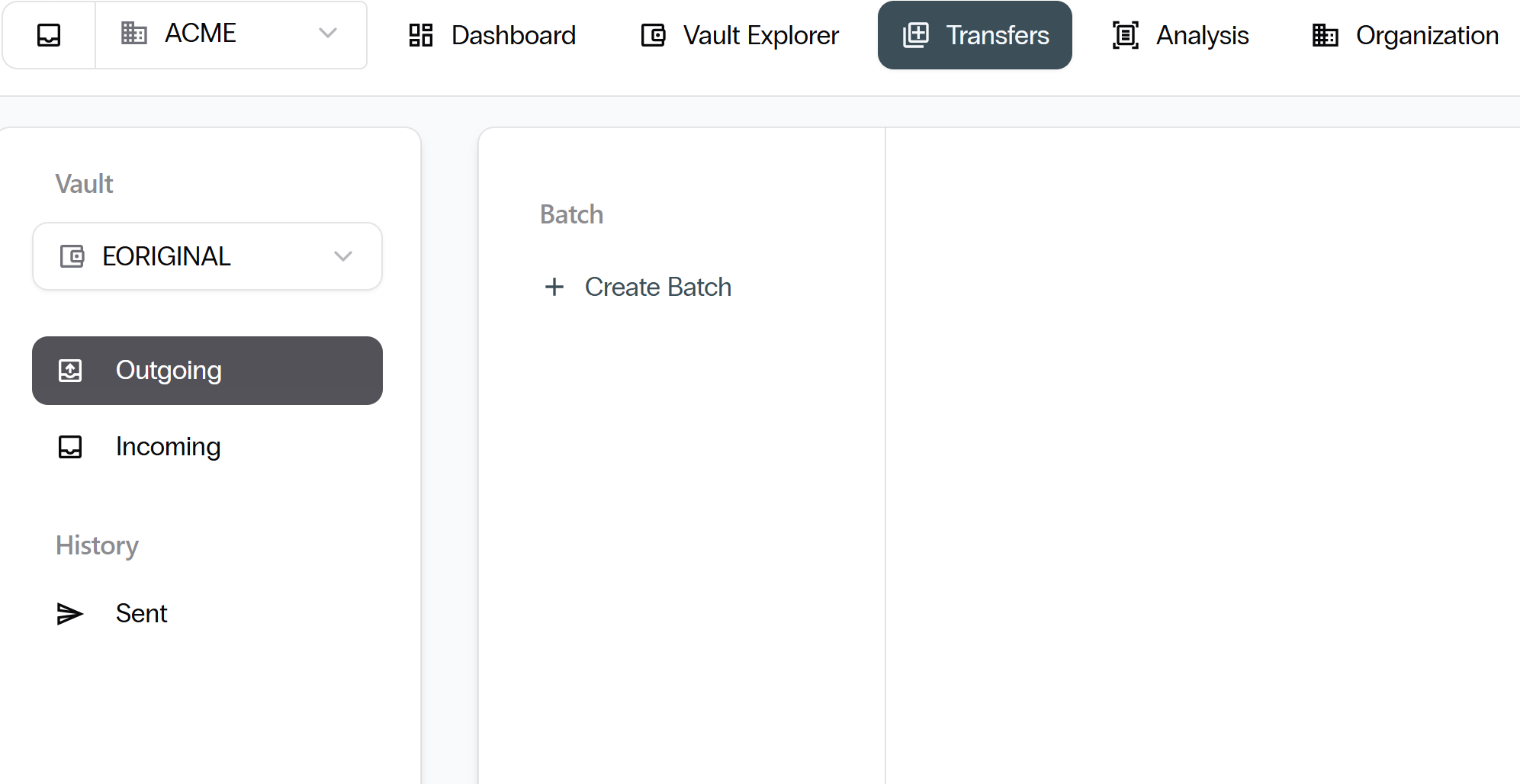
See Transfers for the full walkthrough.
Organization
Your organization's settings and administration surface. Members, vaults, partners, activity, settings, and integrations. Most sections are view-only for standard users.
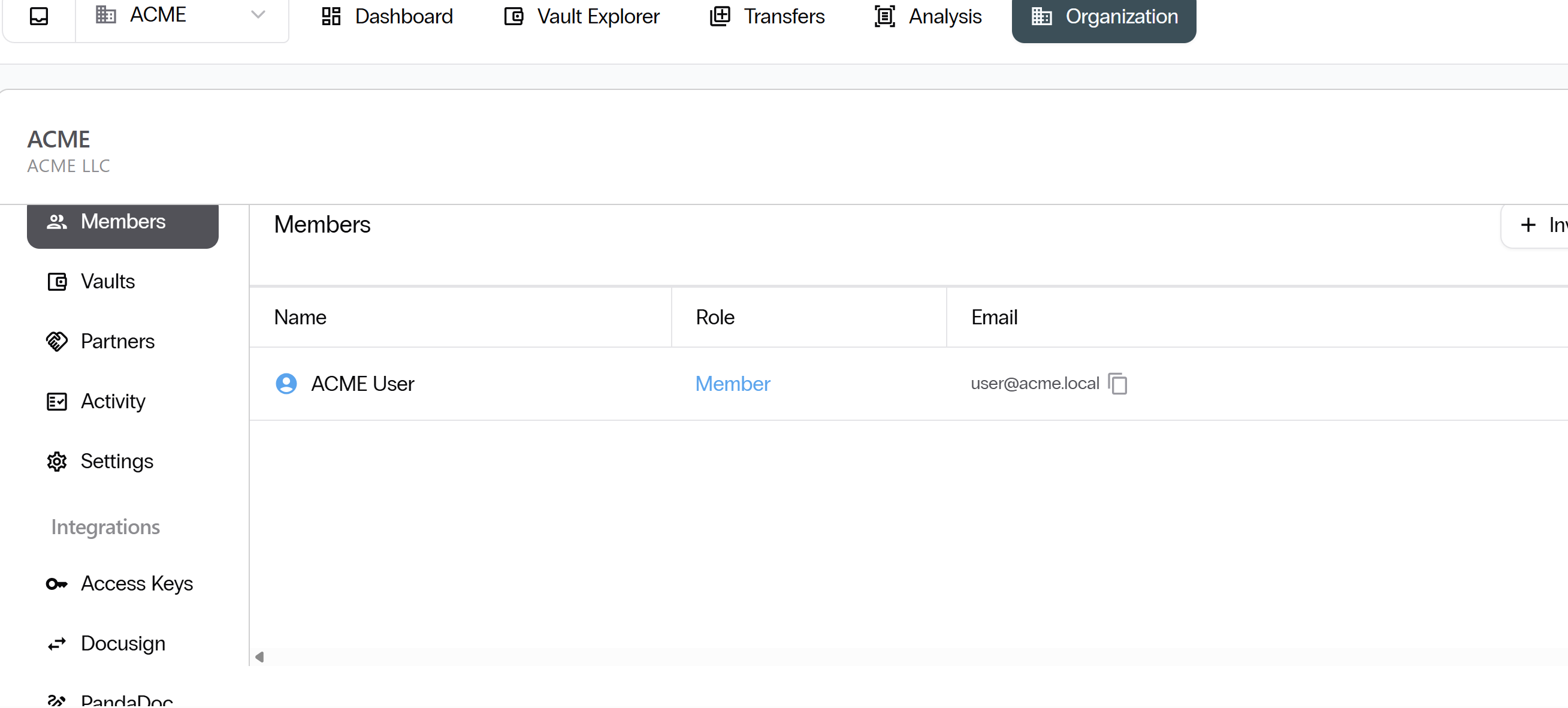
See Organization for the full walkthrough.
Next: Dashboard. Continue with Dashboard.