
Dashboard
After you sign in, you land on the Dashboard. This page is your at-a-glance view of a single vault. It shows what needs your attention, the size and activity of your vault, and quick links back to your workflows, bookmarks, recent packages, and recent activity.
Top of the Dashboard
The colored greeting banner at the top of the Dashboard confirms who is signed in, which vault you are viewing, and gives you shortcuts to the areas you use most.
- Greeting: Confirms who is signed in. It shifts between Good morning, Good afternoon, and Good evening based on the time of day.
- Vault code: The short alphanumeric identifier next to the vault name. Include this code when you contact Concord support.
- Browse Vault: Opens the Vault Explorer for the current vault.
- Activity: Opens the activity log filtered to recent actions.
Switch organization
The dropdown at the top-left, next to the eVault logo, shows the organization you are currently working in. If your account has access to more than one organization, use this dropdown to move between them.
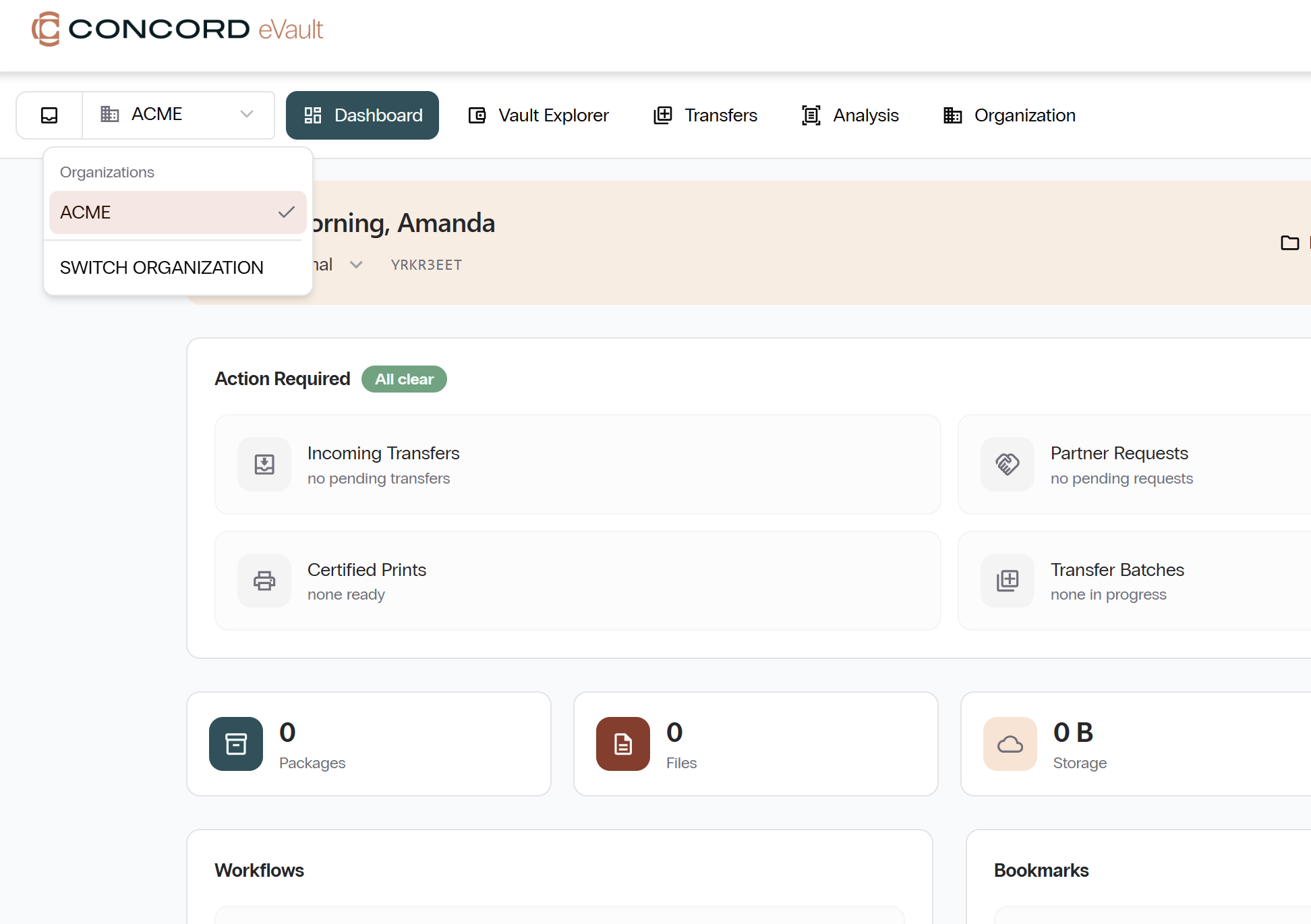
- Current organization: A checkmark shows which organization you are viewing.
- Switch Organization: Selecting this action changes the active organization.
Most client users see only their own organization here.
Switch vault
The dropdown next to the greeting lists every vault in the organization you have access to. Selecting a different vault reloads the Dashboard, statistics, and panels for that vault.
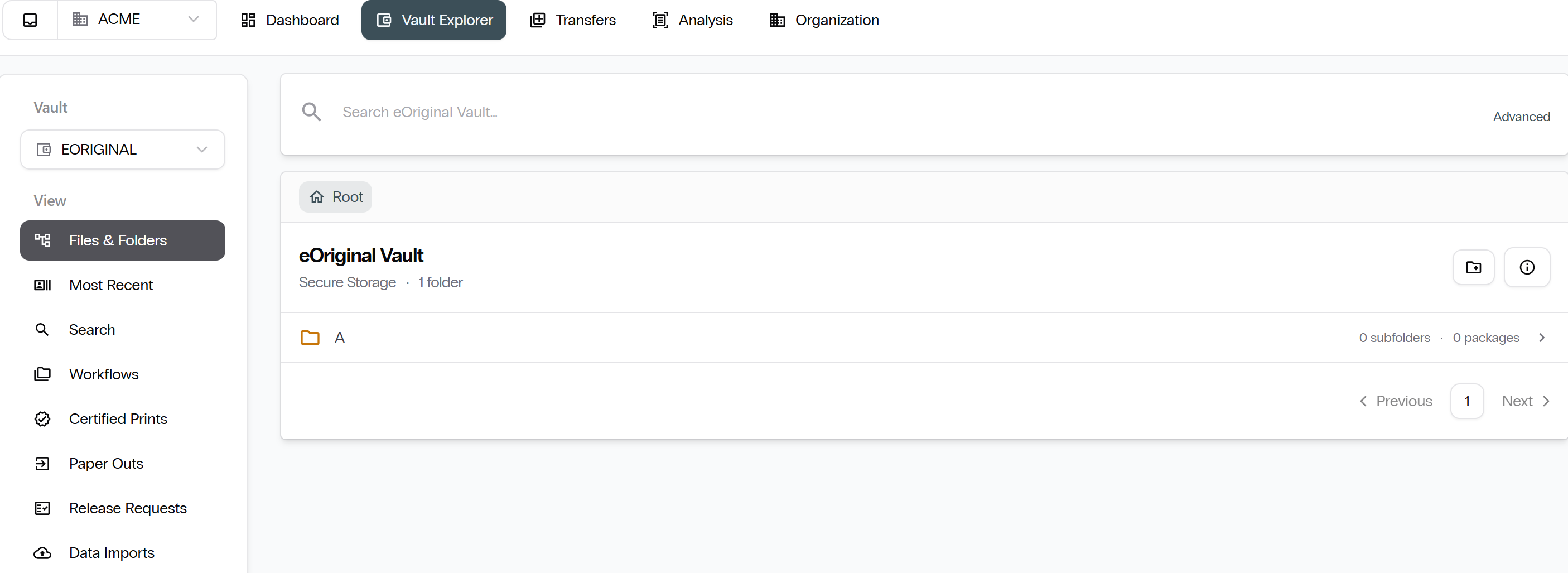
- Current vault: A checkmark shows which vault is active.
- Other vaults: Each vault in the organization is listed by name.
Action Required panel
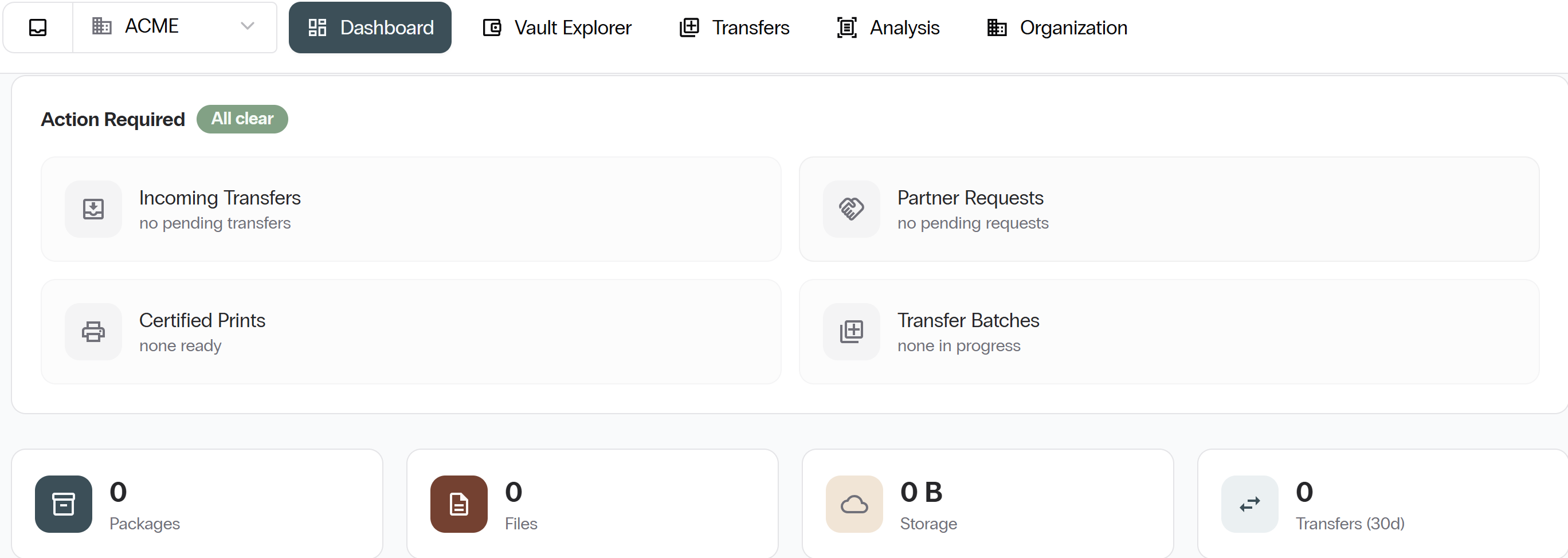
The Action Required panel flags items that need your attention in the current vault. When there is nothing outstanding, the panel shows an All clear tag.
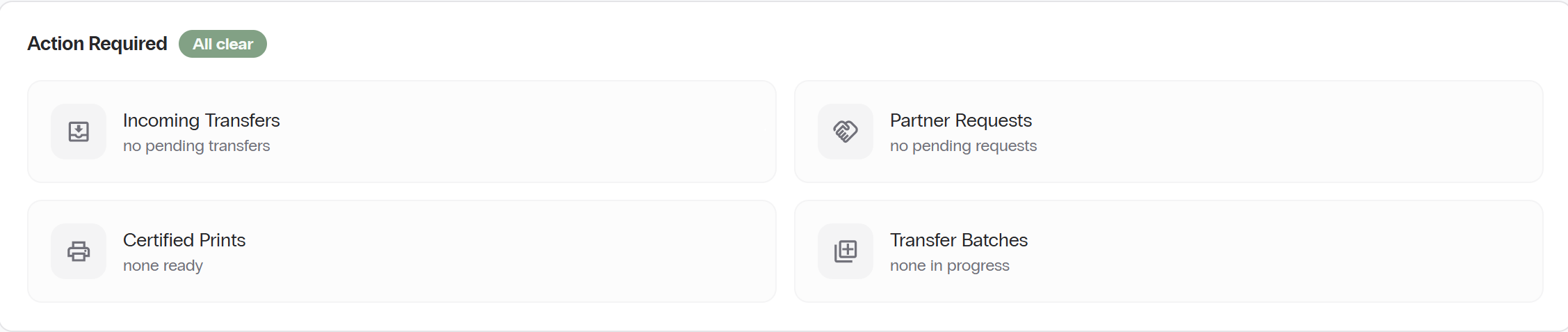
- Incoming Transfers: A partner has sent packages to your vault, waiting for you to accept or reject.
- Partner Requests: Partner organizations have submitted outstanding requests.
- Certified Prints: The system has generated prints ready for you to download.
- Transfer Batches: Outgoing transfer batches still in progress.
Vault stats, Workflows, Bookmarks, and Recent panels
Scroll below the Action Required panel to see the vault's numbers and shortcuts.
Vault stats
Four tiles summarize the vault at a glance.
- Packages: Total number of packages in the vault.
- Files: Total number of individual files plus attachments.
- Storage: Total storage used.
- Transfers: Number of transfers into or out of the vault in the last 30 days.
Workflows
The Workflows panel shows every saved workflow in the vault.
Bookmarks
The Bookmarks panel shows folders you have flagged for quick personal access. Bookmarks are private to you.
Recent Packages
The Recent Packages panel lists the packages most recently added to the vault.
Recent Activity
The Recent Activity panel shows the most recent actions across your organization: uploads, views, downloads, transfers, print requests, and configuration changes.
The activity log is your first stop for compliance and audit review.
Next: Vault Explorer. Continue with Vault Explorer.